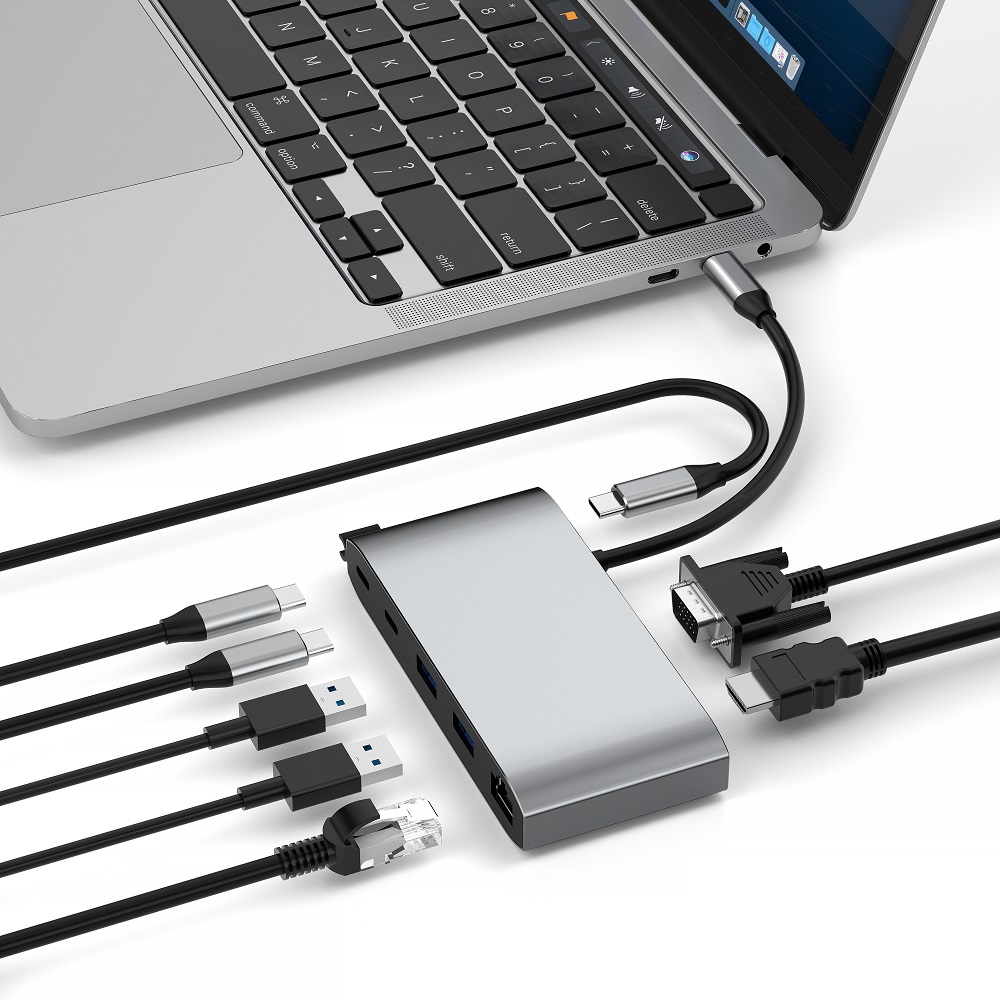
In today's fast-paced work and life, whether you are a student busy with schoolwork, a professional fighting in the workplace, or a technology enthusiast keen to explore new technologies, a reliable and versatile USB-C hub is a powerful assistant to improve work efficiency and give full play to the performance of the device. Learning how to perfectly connect a USB-C hub to a laptop or PC can greatly expand the functions of the device and take your work and entertainment experience to the next level. Next, we will introduce you to the entire connection process in detail to help you achieve seamless collaboration between the hub and the device.
Step 1: Carefully select the right USB-C hub
Before you start connecting, it is crucial to choose a USB-C hub that meets your needs. You need to consider several key factors:
Type of port required: Think about the device interfaces involved in daily use scenarios, such as the common USB-A interface, which is used to connect traditional peripherals such as mice, keyboards, and USB flash drives; the HDMI interface, which is convenient for connecting monitors and projectors to achieve large-screen display; the SD card reader, which is indispensable for photography enthusiasts and users who often handle multimedia files; the Ethernet interface, which provides a stable wired network connection when the network environment is unstable or the network speed requirements are strict.
Compatibility considerations: Make sure that the selected hub is highly compatible with the USB-C port of your laptop or PC. Not only must it ensure that it can support data transmission, but also power transmission if there is a need for charging. The functional characteristics of the USB-C port of devices of different brands and models may vary. For example, some ports only support data transmission of specific protocols, or have limitations in power supply. Therefore, carefully reading the product manual or consulting the merchant to understand the compatibility details of the hub and the device is the key to avoiding subsequent use problems.
Step 2: Prepare your laptop/PC
Before connecting the USB-C hub, make sure your laptop or PC is in optimal condition:
Device startup: Turn on your laptop or PC and wait for the system to fully boot up and enter the operational interface.
Close unnecessary programs: Close all unnecessary applications currently running. These programs may occupy system resources during the connection process, causing potential conflicts, resulting in connection failures or abnormal device recognition. Closing them can provide a stable and smooth system environment for the connection process.
Step 3: Complete the connection of the USB-C hub
When the device is ready, you can connect the hub:
Find the USB-C port: The USB-C port is usually located on the side of the laptop or PC, and some devices may be located elsewhere on the body. It is oval in shape and the interface shape is regular. It supports forward and reverse insertion, which is very convenient.
Insert the hub: Pick up the USB-C hub, gently align its USB-C plug with the USB-C port on the laptop or PC, and insert it smoothly. During the insertion process, you will feel a slight resistance. When you hear a "click", it indicates that the hub has been successfully inserted into the port and the connection is stable.
Connect external power (if necessary): If your USB-C hub requires external power to ensure normal operation or provide sufficient power for connected devices, such as some hubs with rich functions and many connected devices, you should plug the power adapter into the socket and then connect the other end of the adapter to the power interface of the hub. Make sure the power connection is stable to ensure the stable operation of the hub.
Step 4: Connect various peripherals
After the USB-C hub is successfully connected, you can connect various peripherals to it:
Connect common peripherals: Whether it is an external hard drive for transmitting data, a mouse and keyboard for controlling the computer, or a monitor for expanding the display, it can be easily connected. Just plug the data cable plugs of these devices into the corresponding ports on the hub. For example, plug the USB plug of the mouse into the USB-A port and connect the HDMI cable of the monitor to the HDMI port of the hub.
Pay attention to device power supply: If the device you are connecting, such as some large-capacity external hard disks, has a high power demand, pay special attention to whether the hub can provide it with sufficient power support. If the hub cannot meet the power supply needs of the device, it may cause the device to not work properly, or even cause unstable data transmission. For such devices, you can choose to use an external power adapter for it, or ensure that the hub itself has a strong power supply capacity to ensure the stable operation of the device.
Step 5: Fully verify device functions
When all peripherals are connected, a final functional verification is required to ensure that everything is normal:
Check device identification: Check whether the system of the laptop or PC has successfully identified all connected external devices. Normally, the system automatically detects newly connected devices and displays relevant prompts in the taskbar, device manager, etc. For example, in Windows, you can open the "Device Manager" to check whether the newly connected device appears under the categories of "Disk Drives" and "Universal Serial Bus Controllers"; in Mac systems, you can confirm whether the device is correctly identified through "System Preferences" - "Display" and "USB" options.
Test device functionality: Perform a simple functional test on the connected device to ensure that it works properly. For example, try to copy or paste files from an external hard drive to test whether the data transfer is smooth; move the mouse and tap the keyboard to see if the computer can respond accurately; if the monitor is connected, check whether the monitor can display the computer screen normally and whether the display effect is as expected. If you encounter problems during the test, such as the device is not recognized or the function cannot be used normally, first check whether the connection between the device and the hub is firm and whether the data cable is damaged; secondly, confirm whether the hub is fully compatible with your system. If necessary, you can refer to the user manual of the hub for relevant troubleshooting guidance.
Summary
Connecting a USB-C hub to a laptop or PC may seem complicated, but it is actually a simple and orderly process. Through the above five steps, from carefully selecting a hub, to carefully preparing the device, to accurately connecting the hub and peripherals, and finally fully verifying the device functions, you can easily complete the setup and fully enjoy the convenience brought by the USB-C hub, with rich port expansion options, greatly improving the device's user experience and work efficiency.